
Post a Catalog Item
List a single numismatic or collectible item for wholesale.
Step-by-step instructions
1 Open Post catalog item
Sell → Post catalog item (/list). Use this for slabbed coins, sets, supplies, and one-off collectibles — not bullion (use Post bullion) or bulk lots.2 Slab scan auto-fill (recommended for slabs)
At the top of the form, click Scan slab. Desktop: scan the QR with your phone, then scan the holder barcode — fields sync back to your computer. Phone only: opens the scanner directly. Auto-fills title, grade, cert, and Greysheet catalog when applicable. Full guide: Slab scan auto-fill.3 Greysheet catalog search (optional)
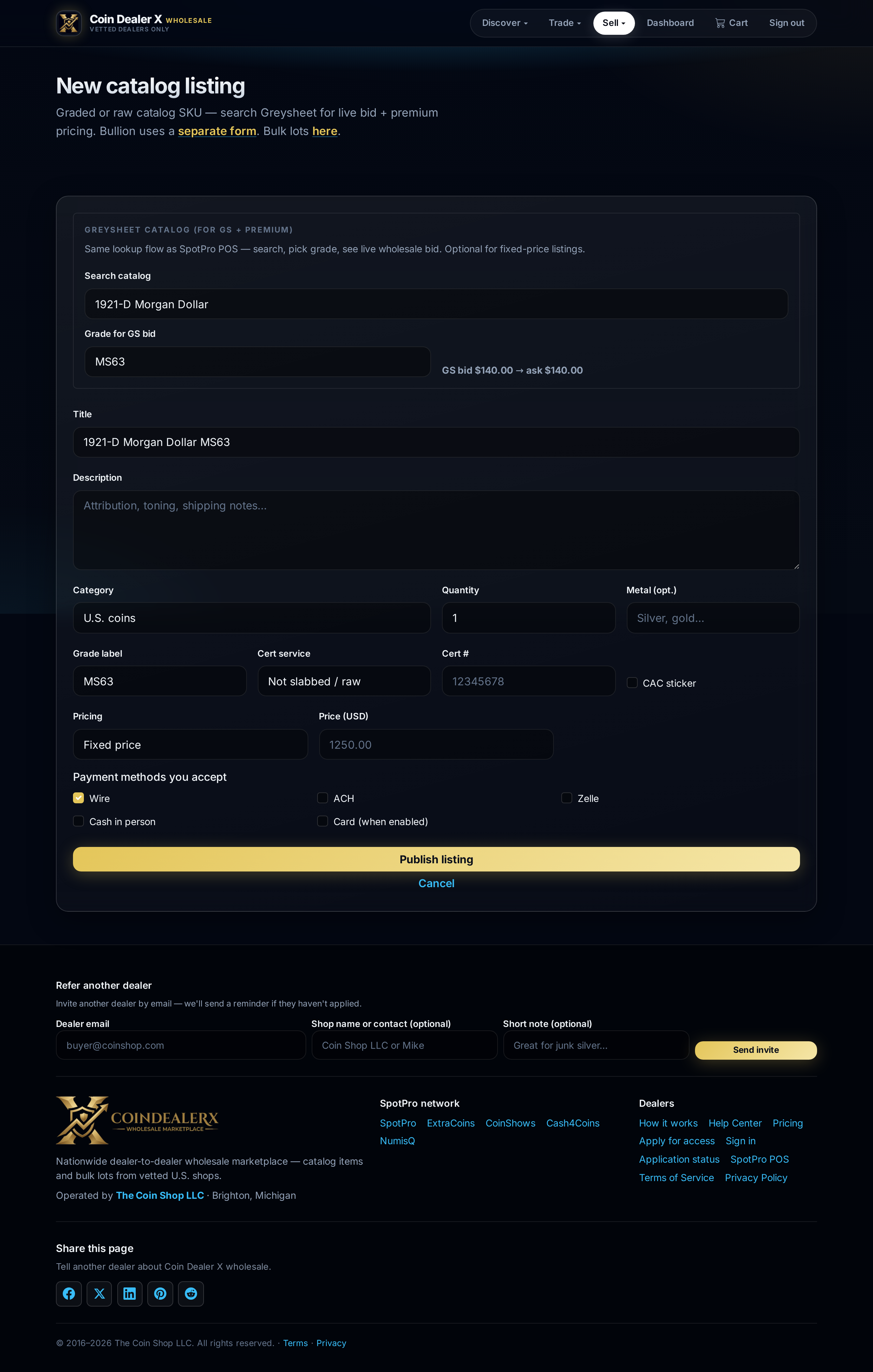
The Greysheet catalog block at the top mirrors SpotPro POS: search a coin, pick a grade, preview the live Greysheet bid. Required when pricing is Greysheet ± adjustment (live); optional for fixed-price listings. Link SpotPro (same email) or configure Greysheet API keys in POS Settings to enable search.Catalog form — Greysheet search, grade, cert fields, GS + premium. 4 Cert service, number, and CAC
Enter grade label, cert service (PCGS, NGC, ANACS, ICG, CACG, etc.), cert number, and check CAC sticker when applicable. Buyers filter Browse by cert and CAC — accurate fields help your inventory surface in saved-search alerts.5 Pricing types (your ask)
Fixed price — set a dollar wholesale ask. Greysheet ± adjustment (live) — live ask = cached GS bid + your adjustment: positive for above bid (e.g.25), negative for below bid in a weak market (e.g.-10), or0for at bid. Refreshes on browse/listing views. Make offer — buyers message or negotiate instead of one-click cart add. See Bids, asks & standing orders.6 Photos, video, and publish
Add up to 5 images and 1 optional video (slab photos, obverse/reverse, or a short clip) using the drag-and-drop zones — same as bullion listings. Select accepted payment methods and publish. GS± listings show live pricing on Browse; cart add is available when a current bid is known. Prefer POS-linked inventory when the SKU already exists in SpotPro.