
Slab Scan Auto-Fill (PCGS / NGC)
Scan a slab barcode from your phone or desktop — title, grade, cert, Greysheet catalog, and slab photo fill in on the catalog listing form.
Step-by-step instructions
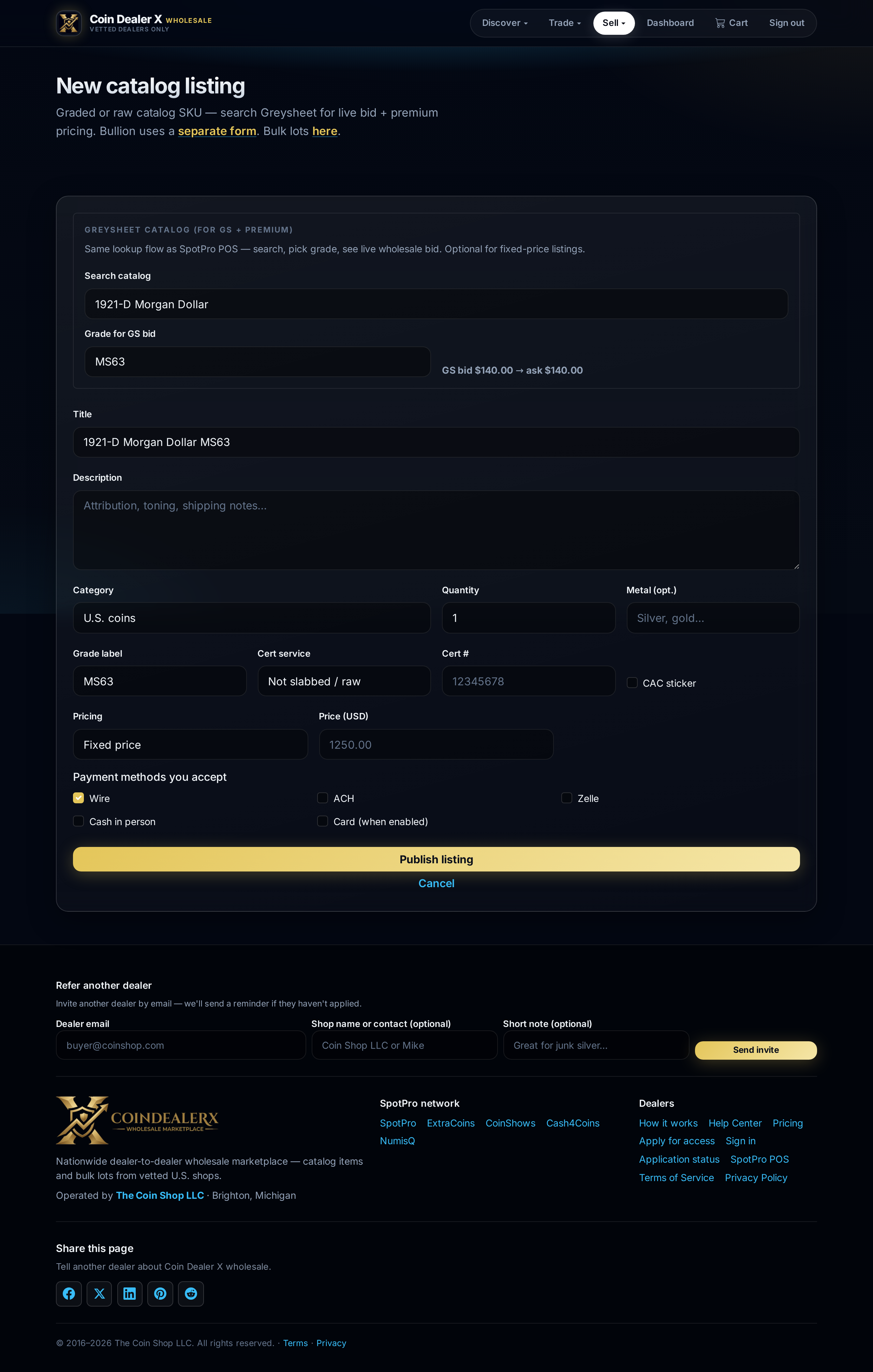
1 Open the catalog listing form
Sign in with sell permission, then Sell → Post catalog item (/list). The Scan slab label block is at the top — above Greysheet catalog search. Use this for PCGS and NGC slabs you are posting wholesale on CDX (not bullion or bulk lots).Catalog form — Scan slab, Greysheet search, cert fields, and media. 2 Desktop at the counter — use your phone as the scanner
On a desktop or laptop, click Scan slab. A QR code appears — scan it with your phone camera. On the phone capture screen, tap Start camera and aim at the slab barcode on the holder (not the coin). PCGS and NGC are auto-detected. When the barcode reads, the phone shows a short “hang tight” message while CoinFacts lookup runs. Return to your computer: title, grade, cert service, cert number, and Greysheet fields populate on the listing form. You keep typing price and payment options on the big screen.3 Listing entirely on your phone
On a phone or tablet, open /list and tap Scan slab. You go straight to the barcode scanner — no QR step. After a successful read, you land back on the form with fields filled. Same CoinFacts + Greysheet logic as desktop.4 What auto-fills
- Title — year, mint, type, and designation from CoinFacts
- Grade label — numeric grade or Details label (e.g. UNC Details — Improperly Cleaned)
- Cert service & number — PCGS or NGC from barcode / lookup
- Greysheet catalog — coin search + grade picker when a standard numeric grade applies
- Slab photo — scan image can attach to your listing uploads when captured
5 Details & Genuine holders
NGC/PCGS Details and Genuine holders still auto-fill title, grade label, and cert — but Greysheet bid lookup is skipped (the sheet does not price Details grades). You will see a notice in the Greysheet preview. Use fixed price or make offer for those listings.6 When the barcode will not read
Try brighter light and fill the frame with the label. On the phone capture screen you can photograph the full label if the barcode fails. On desktop without phone capture, Scan slab can fall back to uploading a slab photo from disk — barcode is tried first, then OCR. Google Images thumbnails rarely decode — open the image in a new tab at full size or save it first.7 Review and publish
Slab scan is a draft assistant — always confirm grade, cert number, Greysheet match, and pricing before publish. Set fixed price, Greysheet ± adjustment, or make offer; add any extra photos; choose payment methods; then save. Linked SpotPro inventory is still preferred when the SKU already exists in POS — see List from SpotPro inventory.