
Complete Visual Walkthrough (Registration → Sale Complete)
Every major screen on Coin Dealer X — apply, browse Midwest Coin Exchange listings, cart checkout, orders, sales, and messaging. Real dealer data, no mockups.
Step-by-step instructions
1 Home — what Coin Dealer X is
The public homepage explains the vetted wholesale network: human-reviewed dealers, live orders, five payment methods, and flat membership pricing. Click Apply for access or Sign in from the header.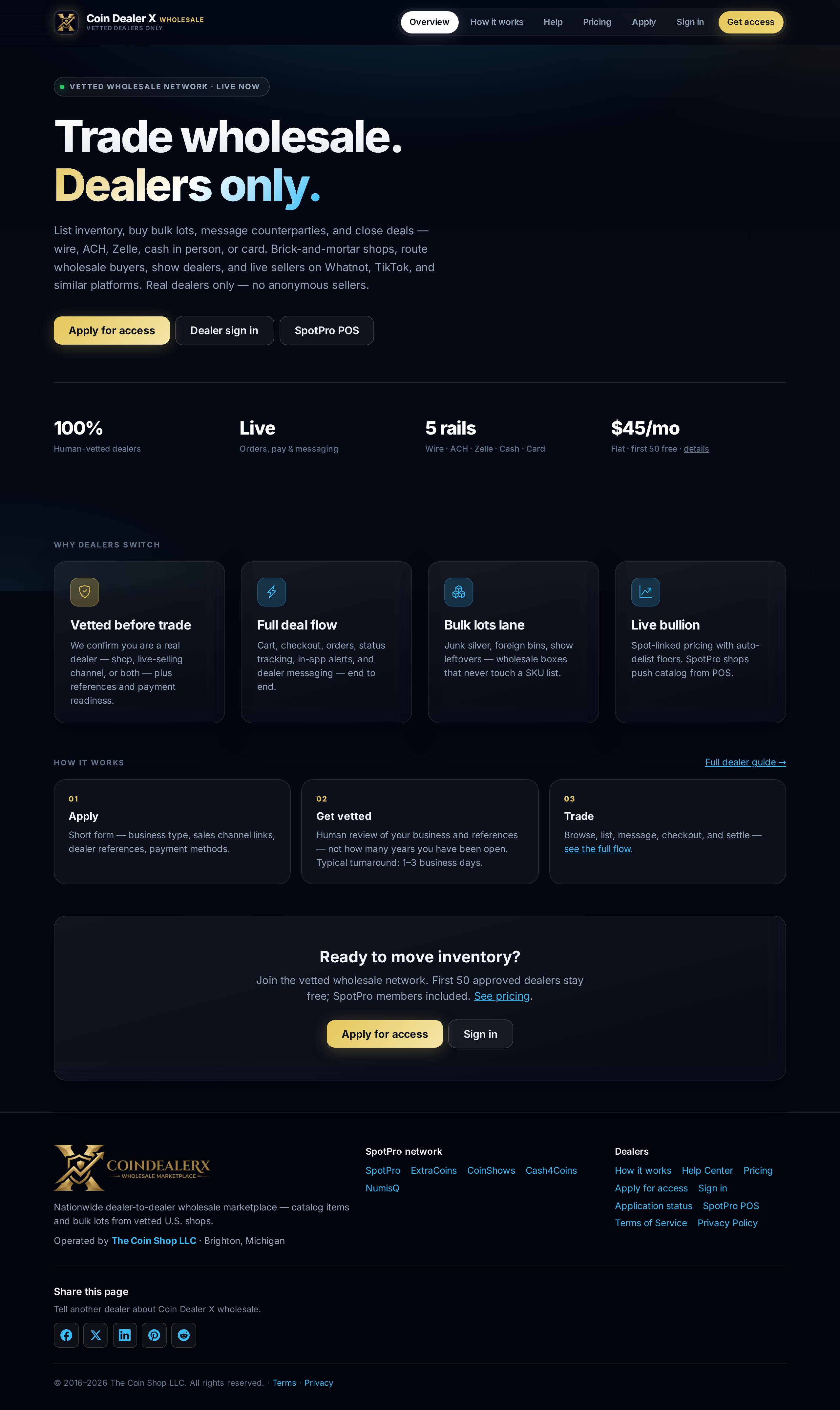
coindealerx.com — dealer-only wholesale marketplace overview. 2 Apply for dealer access
The application collects business type, sales channel links (Whatnot, TikTok, website, show schedule), dealer references, buy/sell intent, and a password you will use to sign in after approval. Founding slots and SpotPro complimentary access are called out at the top.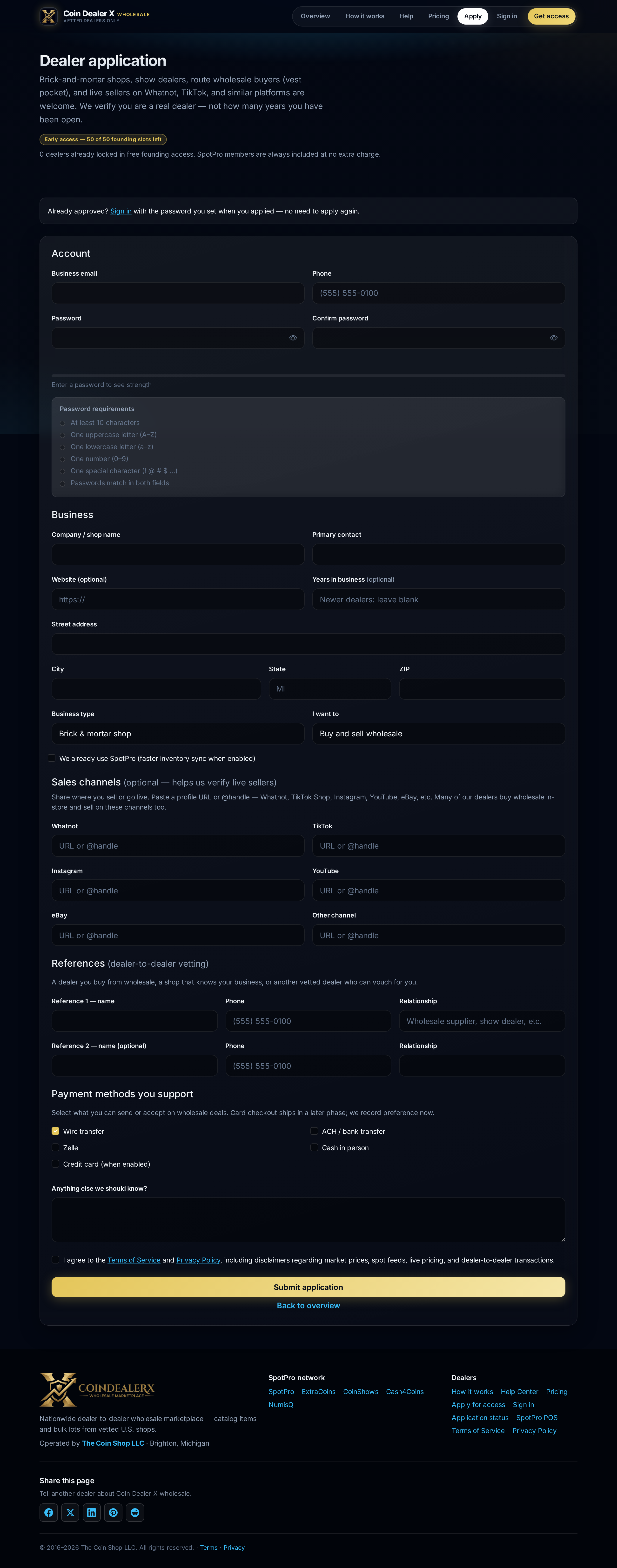
Dealer application — password strength meter and business-type fields. 3 Track application status
After submit you receive a 32-character reference ID by email. Paste it on Application status to see received, under review, approved, or needs-info states.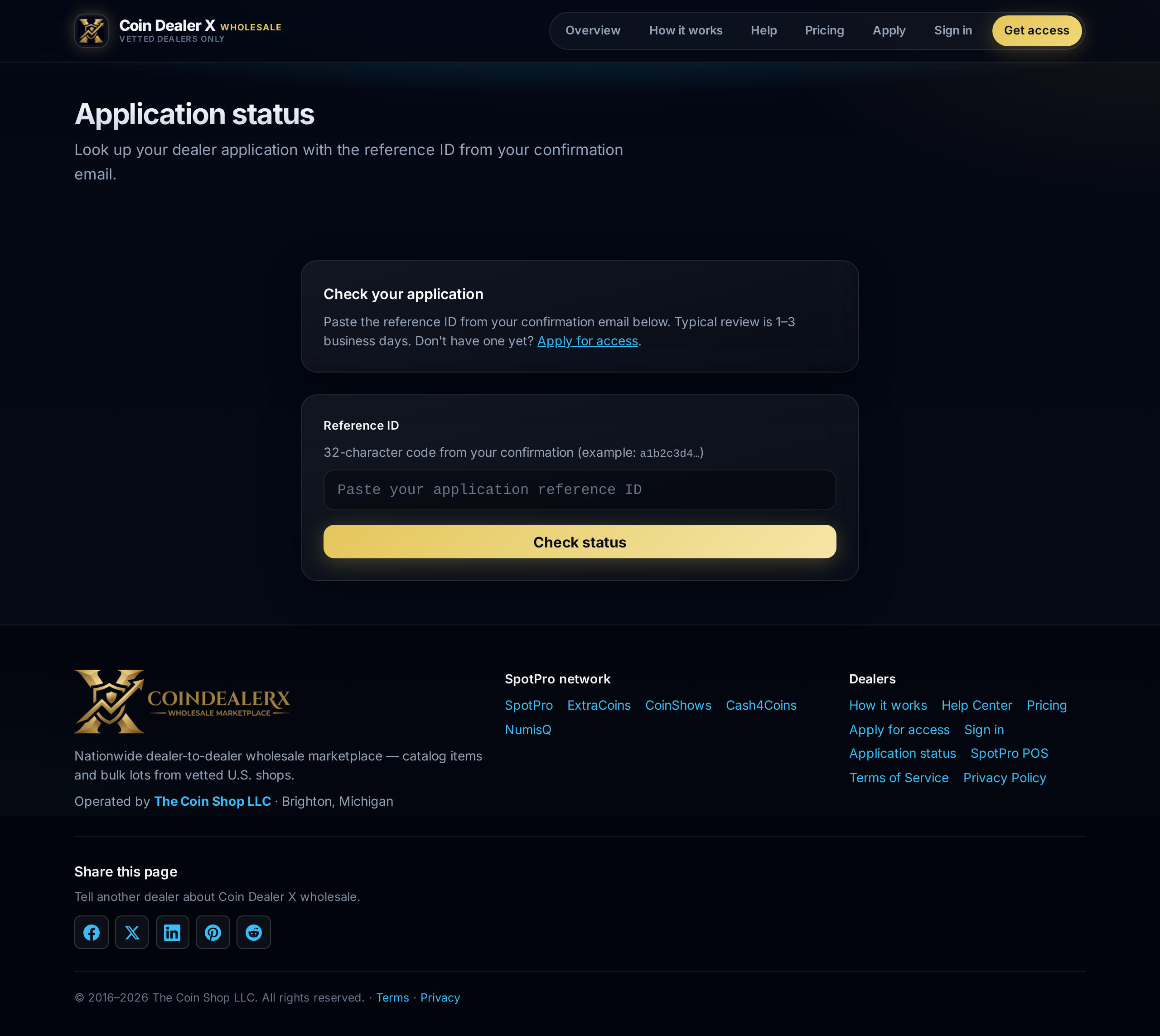
Status lookup — enter the reference ID from your confirmation email. 4 Sign in after approval
Use the email and password from your application. The same login works on desktop and mobile. SpotPro subscribers link the same shop email for complimentary CDX access.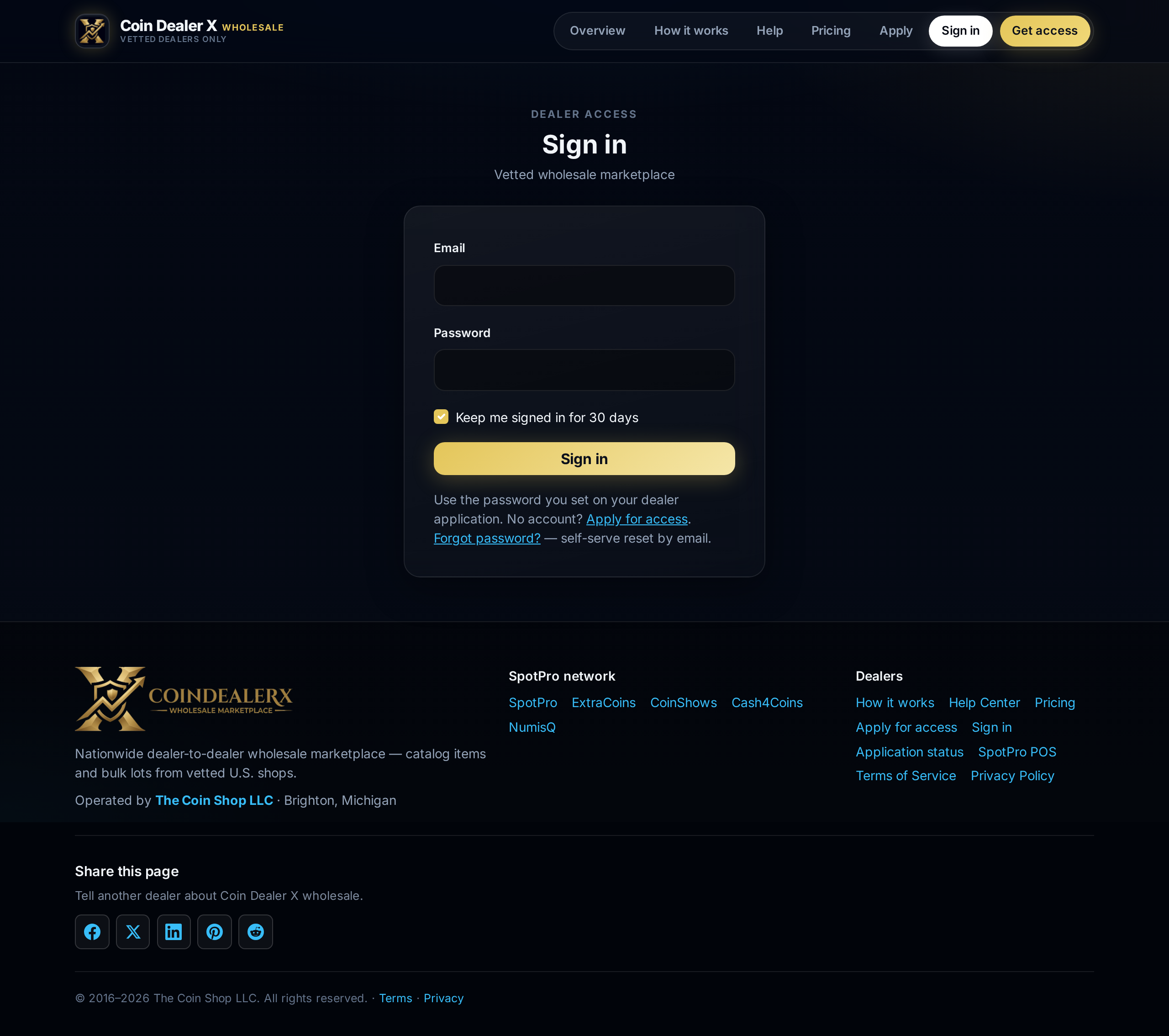
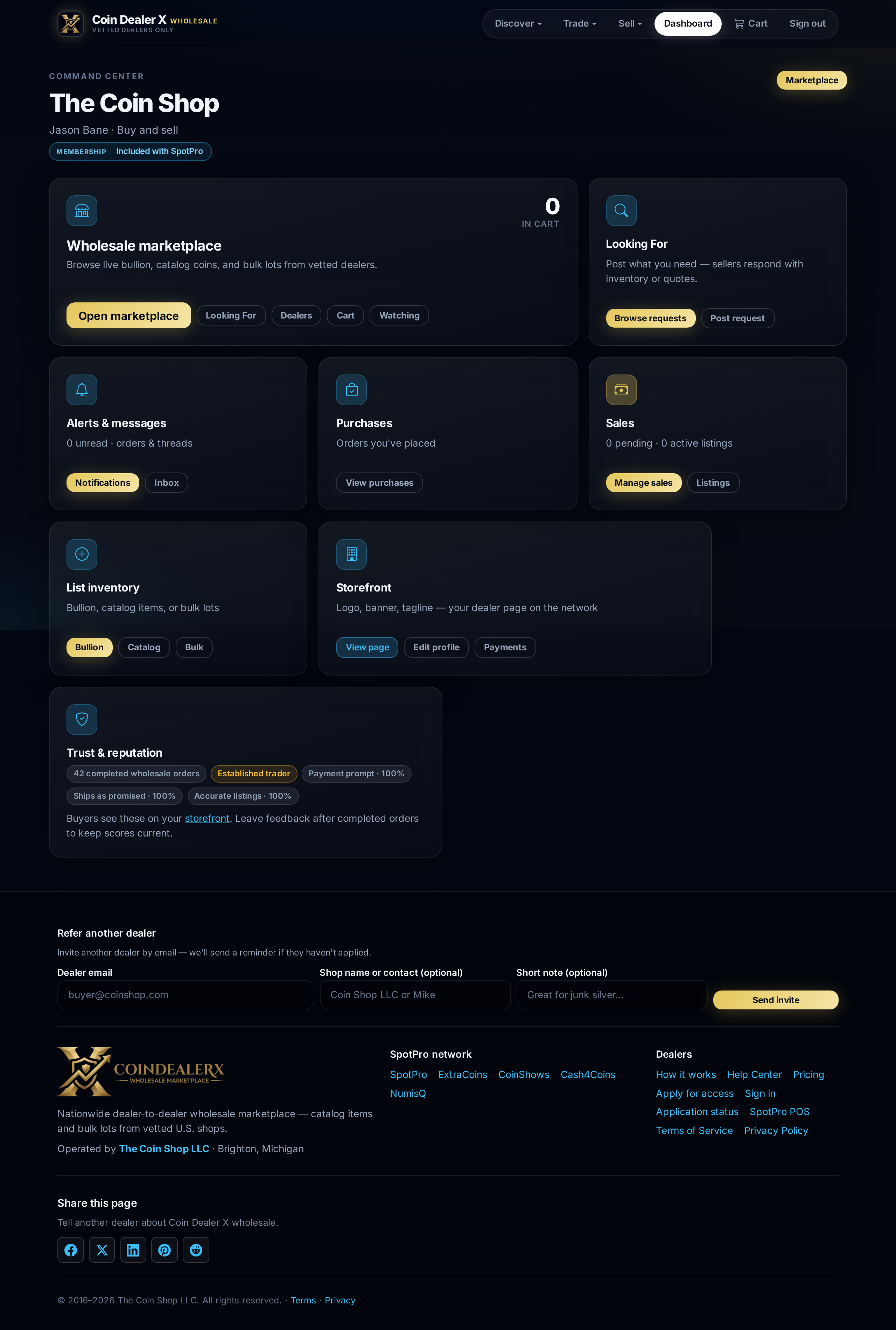
Sign in — bookmark this page on your counter machine. 5 Dashboard command center
Approved dealers land on the dashboard: membership badge, cart count, marketplace tile, purchase queue, sales queue (if you sell), and quick links to alerts. The Coin Shop (example account) shows both buy and sell permissions.Dashboard — wholesale marketplace, purchases, and sales shortcuts. 6 Browse live wholesale inventory
The marketplace lists active offers from vetted shops like Midwest Coin Exchange, Pacific Rare Coins, and Southern Gold & Silver. Filter by type, cert service, CAC, metal, and state; use Save search for email alerts. Shortcuts open the bullion board, Looking For bids, and saved searches. Out-of-stock linked POS items are hidden automatically.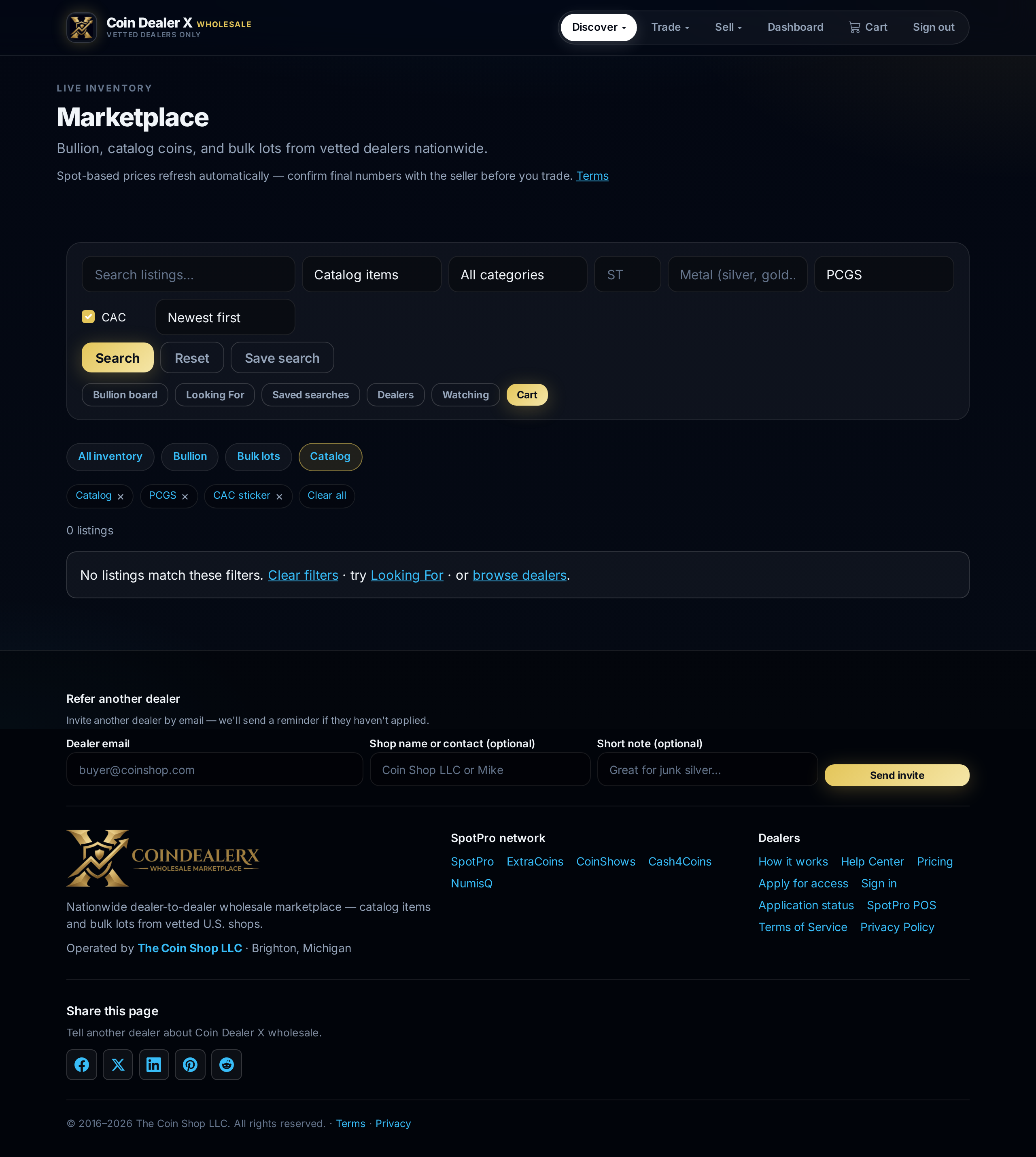
Browse — filters, cert/CAC, bullion board, and Looking For shortcuts. 7 Open a listing — 1921 Morgan from Midwest
Each listing page shows photos, description, seller chip, spot context for bullion, wholesale price, quantity, and Add to cart. You can message the seller before buying.
Listing detail — 1921 Morgan Dollar MS63 from Midwest Coin Exchange. 8 Dealer storefront profile
Click a seller name to open their public storefront: tagline, payment methods, and active listings. Example: Midwest Coin Exchange — Chicago wholesale Morgans, Peace, and type.
Dealer storefront — Midwest Coin Exchange wholesale profile. 9 Cart and checkout
Cart groups lines by seller. Choose payment method per dealer (wire, Zelle, ACH, cash in person, card if enabled), confirm quantities, and place orders. Multi-seller carts split into separate orders at checkout.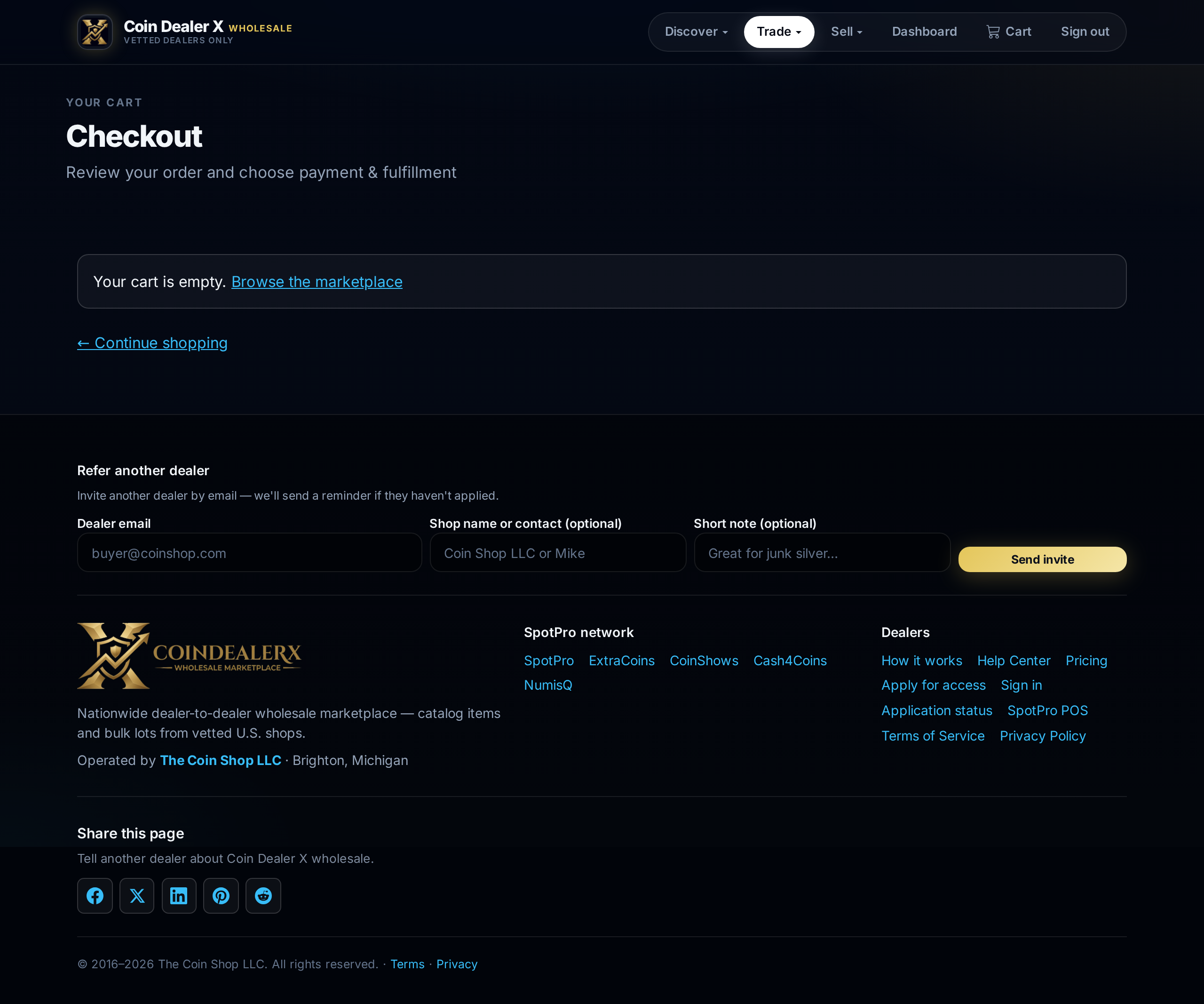
Cart checkout — per-seller payment and fulfillment choices. 10 Your purchases (buyer view)
All wholesale buys appear here with status chips: pending, confirmed, paid, shipped, completed, cancelled. Filter chips highlight orders that need your action (send payment, confirm receipt).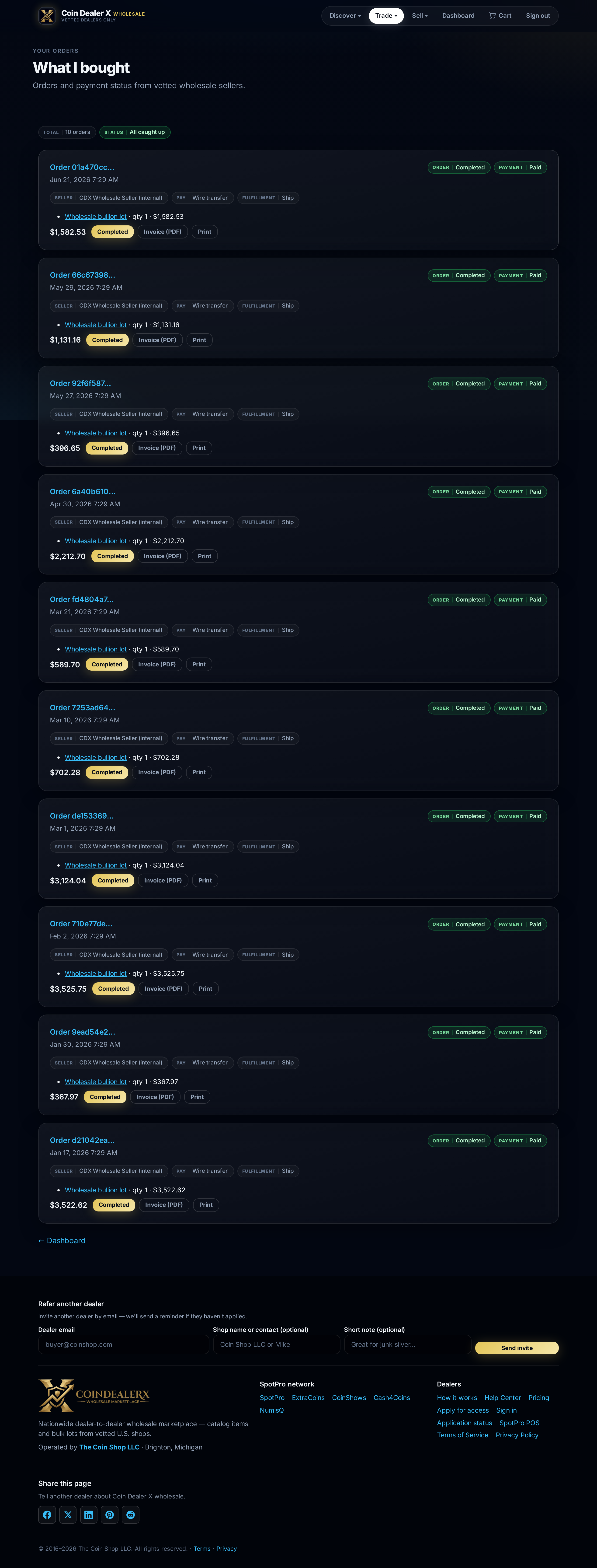
Purchases — orders from Pacific Rare Coins, Southern Gold & Silver, and more. 11 Buyer order — mark paid / awaiting ship
Open any purchase to see line items, seller payment instructions, status timeline, invoice link, and the order conversation thread.
Purchase order (paid) — payment confirmed, awaiting seller ship. 12 Buyer order — completed
When goods arrive, mark Received to close the loop. Completed orders stay in history for your books.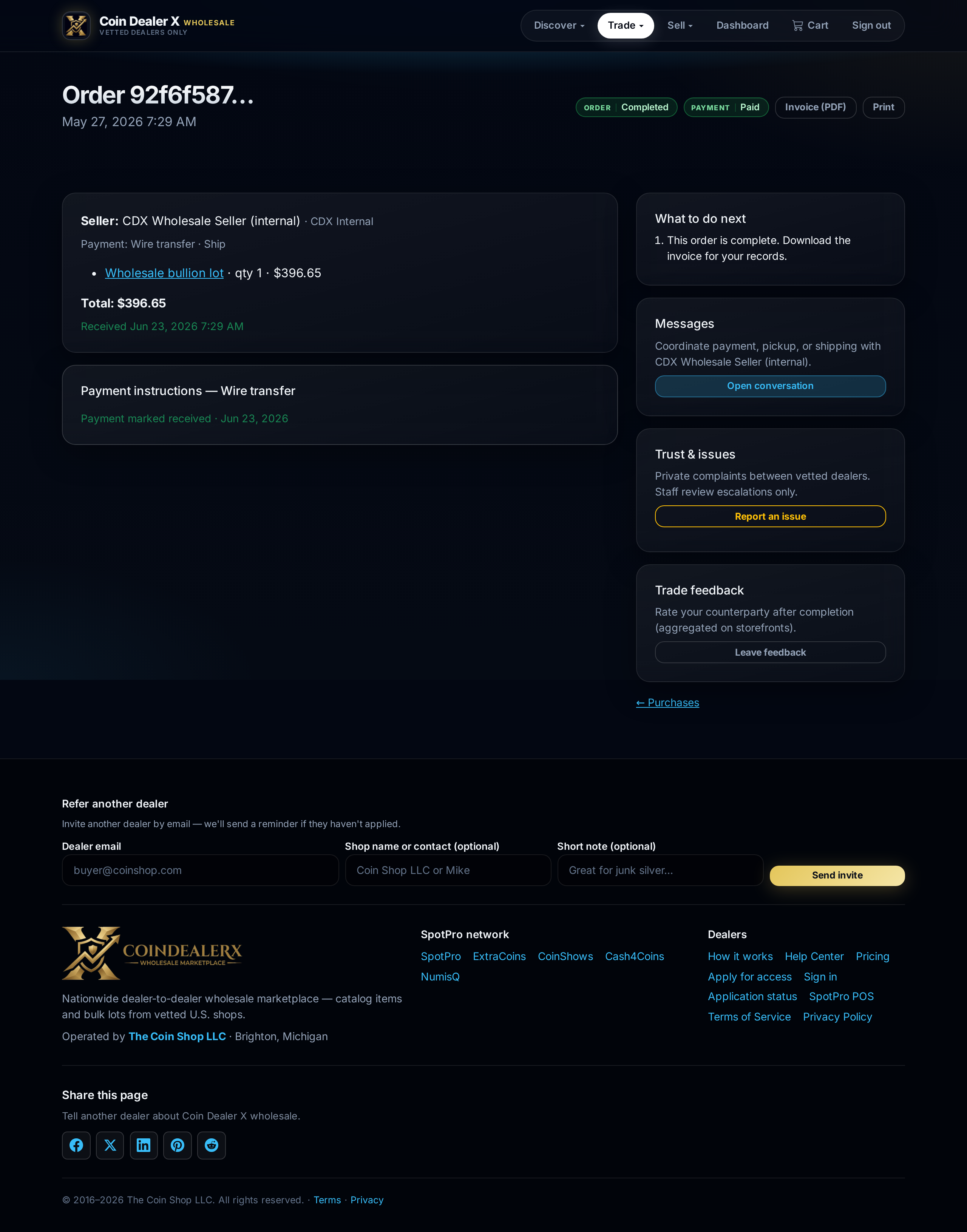
Completed purchase — deal closed after receipt confirmed. 13 Sales queue (seller view)
If you list wholesale inventory, incoming buyer orders appear on Sales. Pending orders show an action badge. Each row links to manage order, invoice, and conversation.
Sales — incoming orders from Test Route Wholesale Co. and other buyers. 14 Manage an incoming sale
Confirm the order, mark paid when wire/Zelle lands, add tracking when shipped, or cancel if payment never arrives. Payment settings on your profile control which payment methods buyers see.
Seller order management — confirm, mark paid, ship, or message buyer. 15 Messages inbox
All listing questions and order threads in one inbox. Unread counts also appear on the Trade menu and dashboard alerts.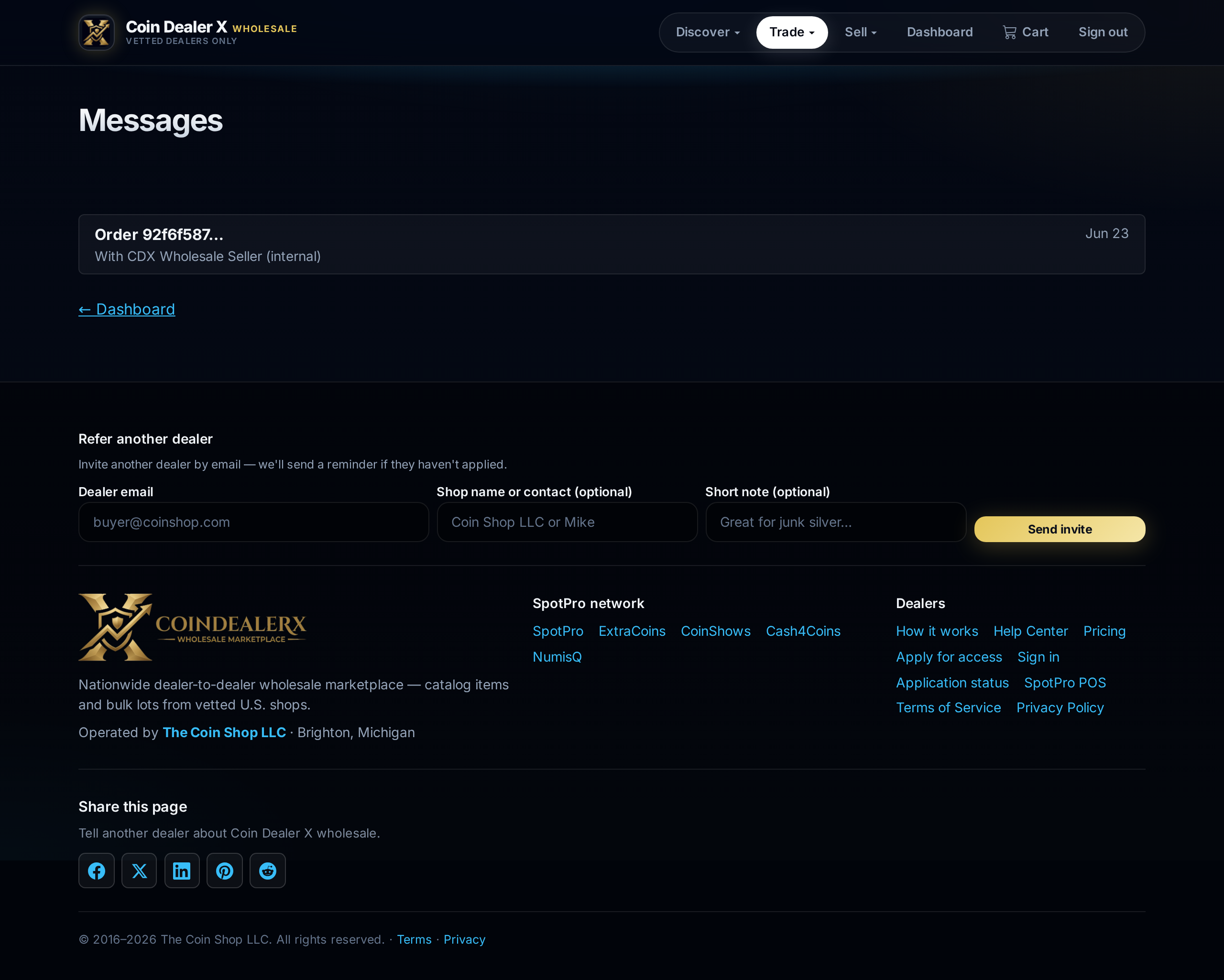
Messages — listing inquiries and order conversations. 16 Order conversation thread
Coordinate wire instructions, pickup times, partial shipments, or grading questions. Order threads stay attached to the deal for both parties.
Thread — buyer and seller coordinating payment on an open order. 17 Alerts and notifications
New orders, messages, payment updates, and referral activity surface here. Click through to the order or thread.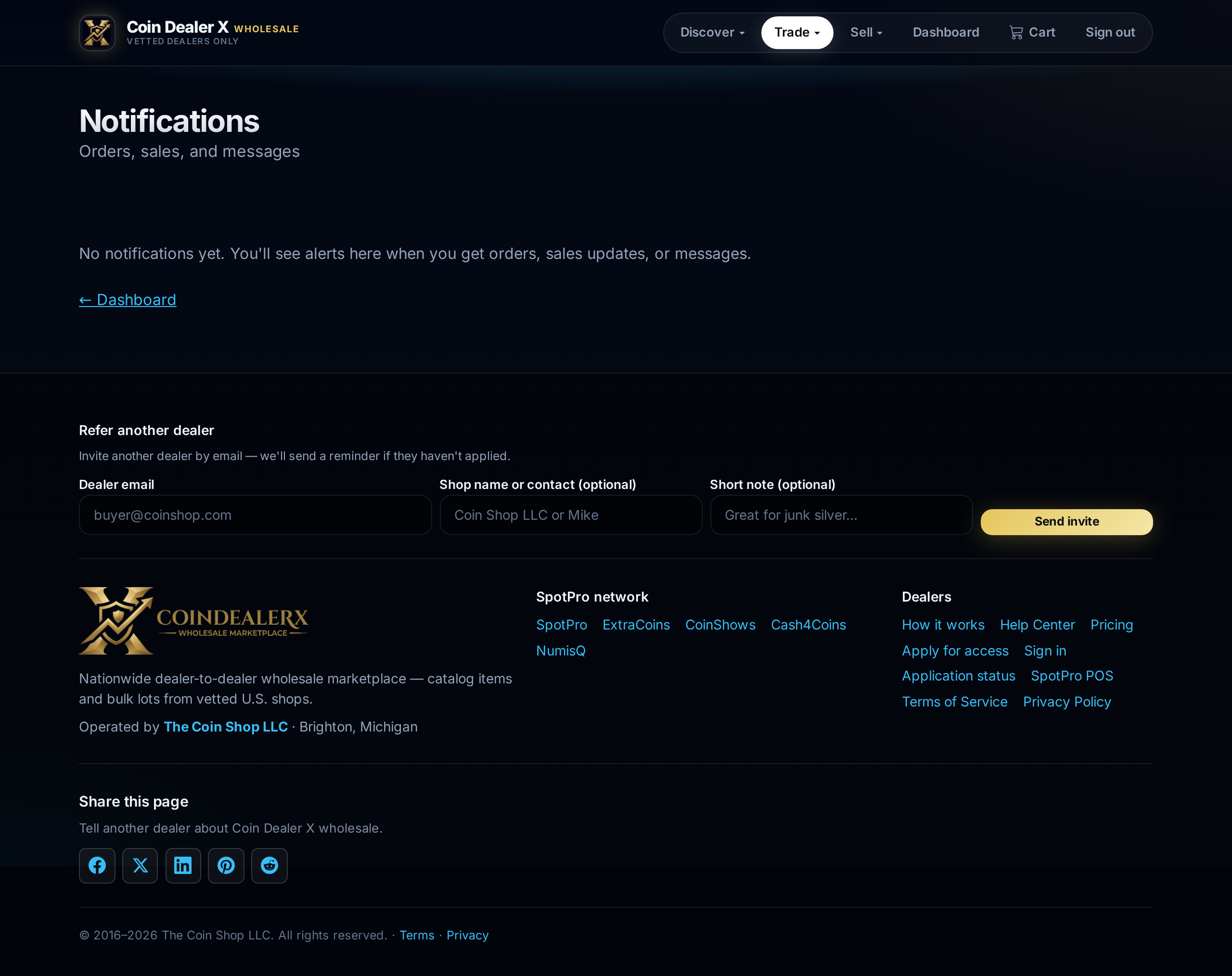
Notifications — order and message activity feed. 18 Storefront & payment settings
Sellers configure wire instructions, Zelle email, cash-in-person notes, and optional card processors (Authorize.Net, Stripe, CARDZ3N). Buyers see only what you enable.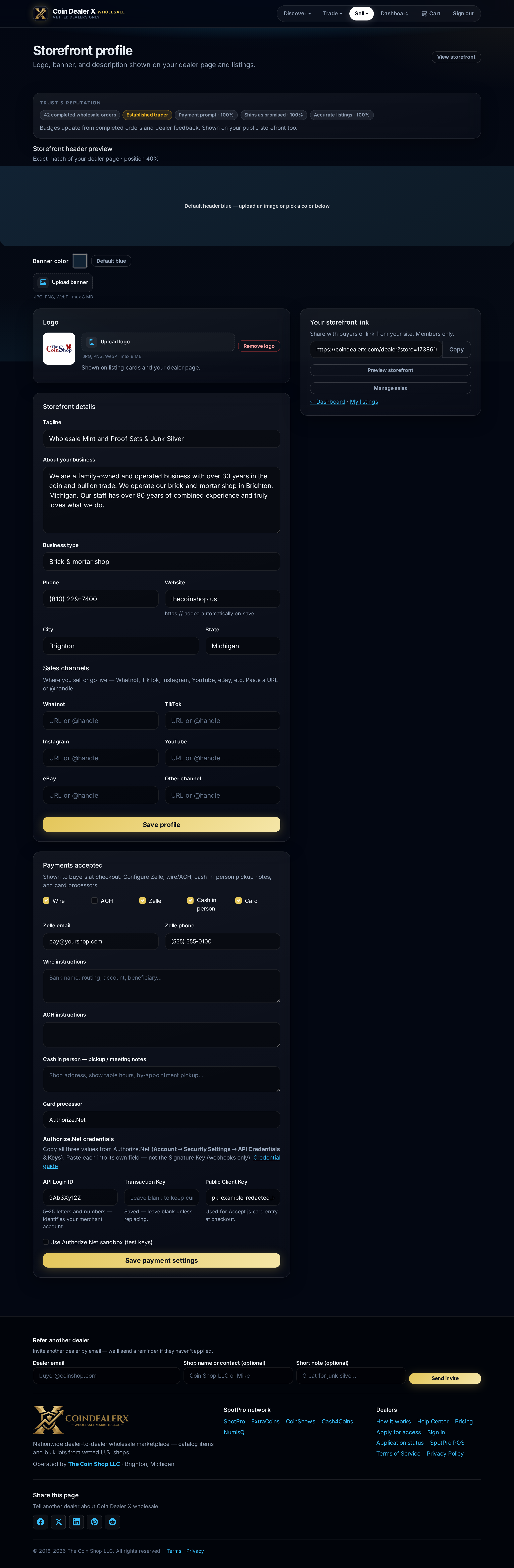
Profile — storefront branding and payment processor keys. 19 My listings
Review every active, pending, and withdrawn wholesale offer. Edit on CDX or — if linked to SpotPro — use Update from POS inventory instead.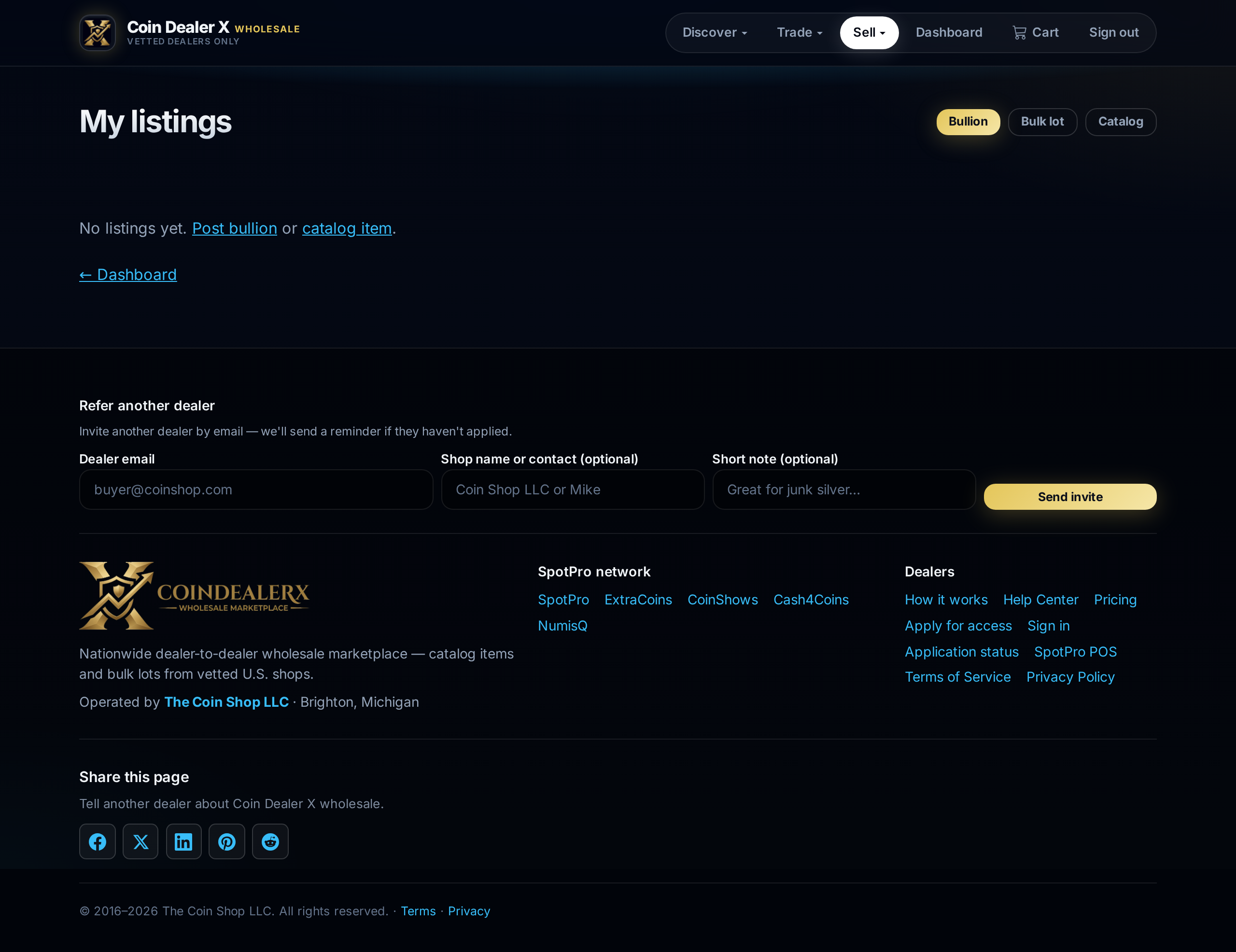
My listings — manage posted catalog, bullion, and bulk lots. 20 Post bullion (seller)
Choose Live spot + premium or fixed pricing. On spot-based lines, enable Auto-delist if live total price falls below floor and set a minimum total dollar floor for the full quantity — the listing withdraws if spot drops too far. See delist floor protection. SpotPro shops can set the same floor from inventory Post/Update.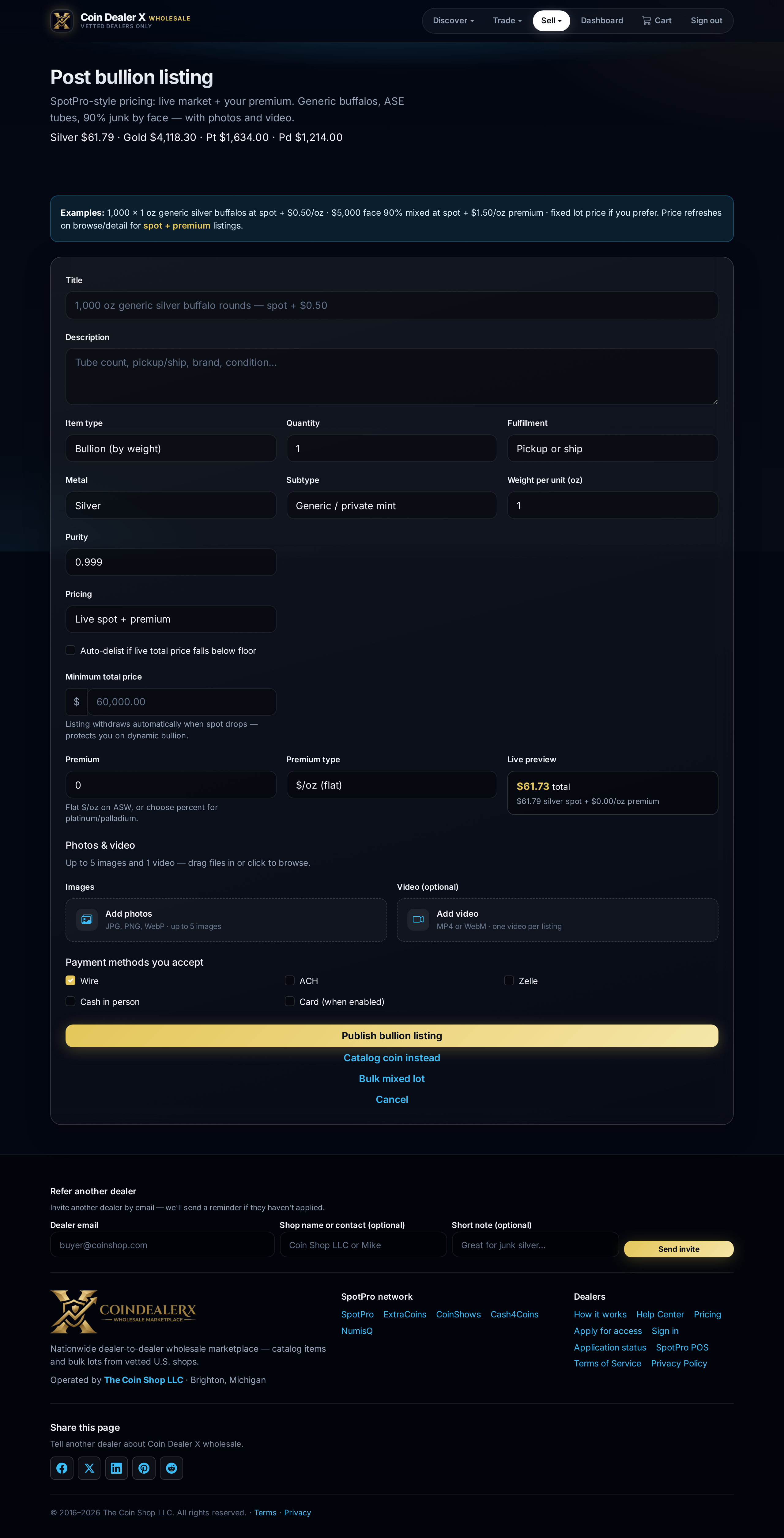
Post bullion — spot + premium, live preview, and optional delist floor. 21 Post catalog item (seller)
Slabbed coins, sets, and one-off collectibles use the catalog form. Scan slab at the top reads PCGS/NGC barcodes — from desktop, scan a QR with your phone and the fields sync back; on phone, the scanner opens directly. Title, grade, cert, and Greysheet catalog auto-fill. See Slab scan auto-fill.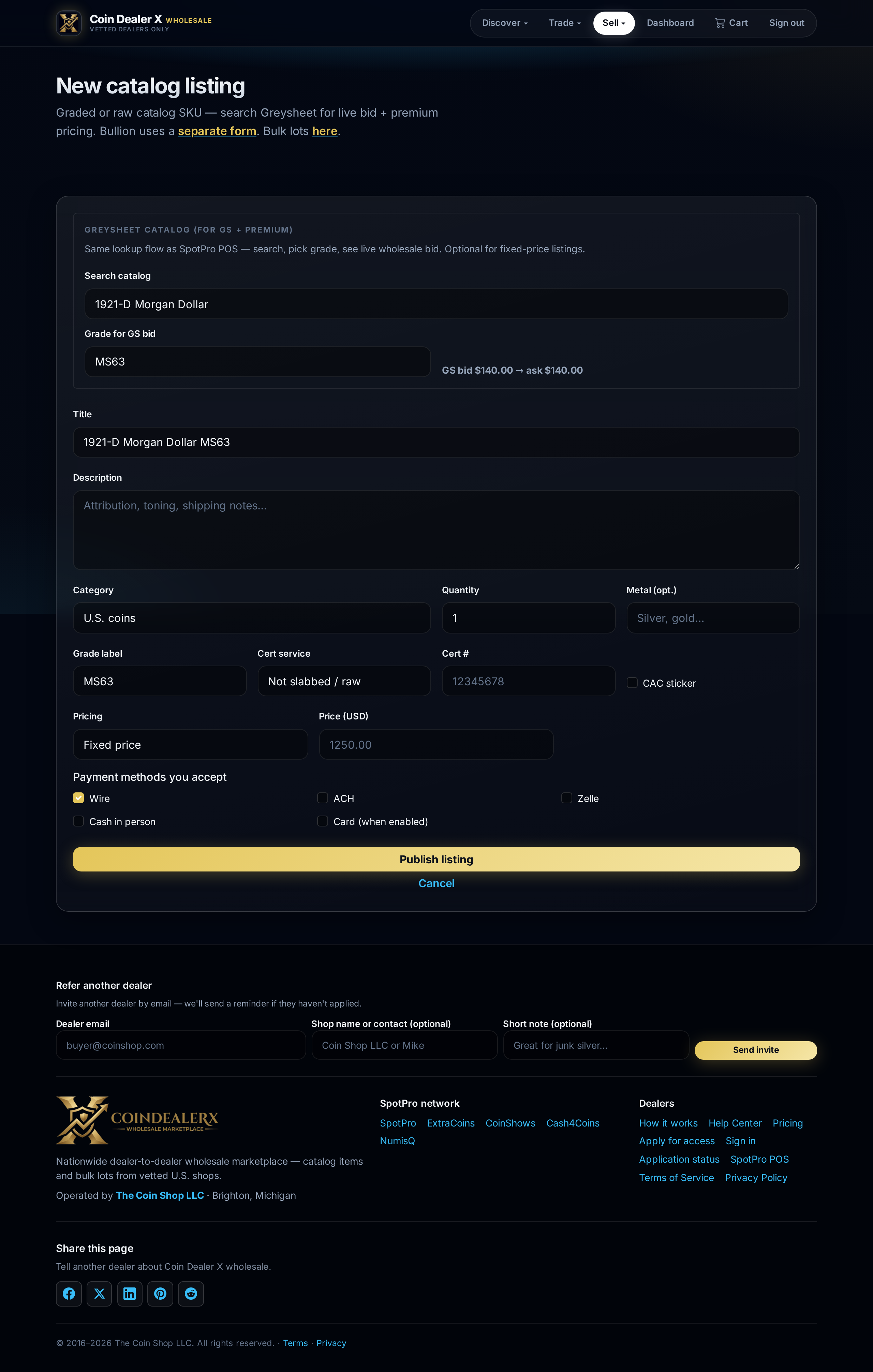
Post catalog item — slab scan, Greysheet, cert fields, and media.