
Saved Searches & Email Alerts
Save Browse filters and get email when new listings match.
Step-by-step instructions
1 Save a search from Browse
Run any combination of filters on Browse — keywords, listing type, category, state, metal, cert service, CAC-only, and sort order. Click Save search, name it, and choose whether to enable email alerts. The saved query is stored on your account.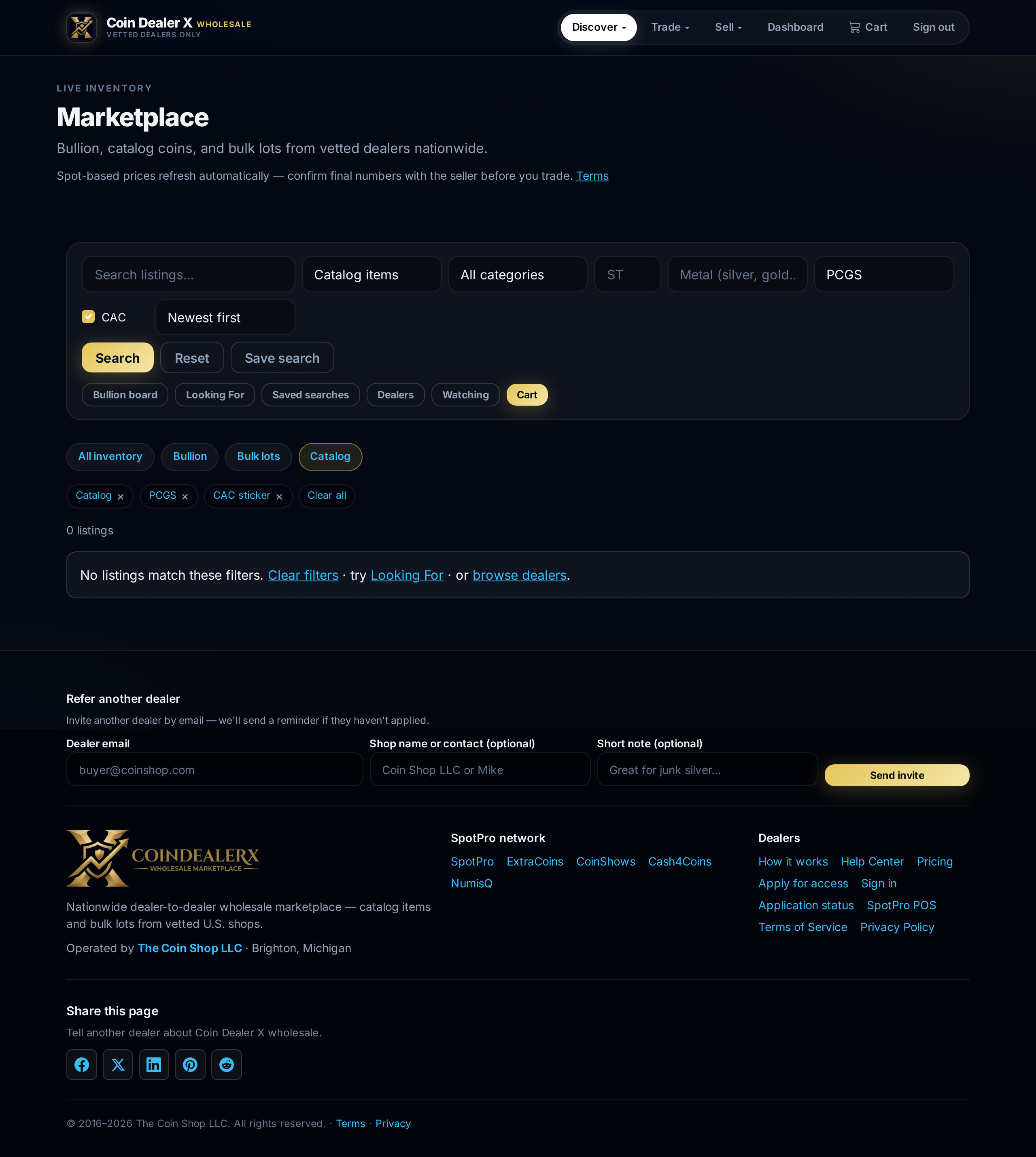
Save search button appears after you set filters. 2 Manage saved searches
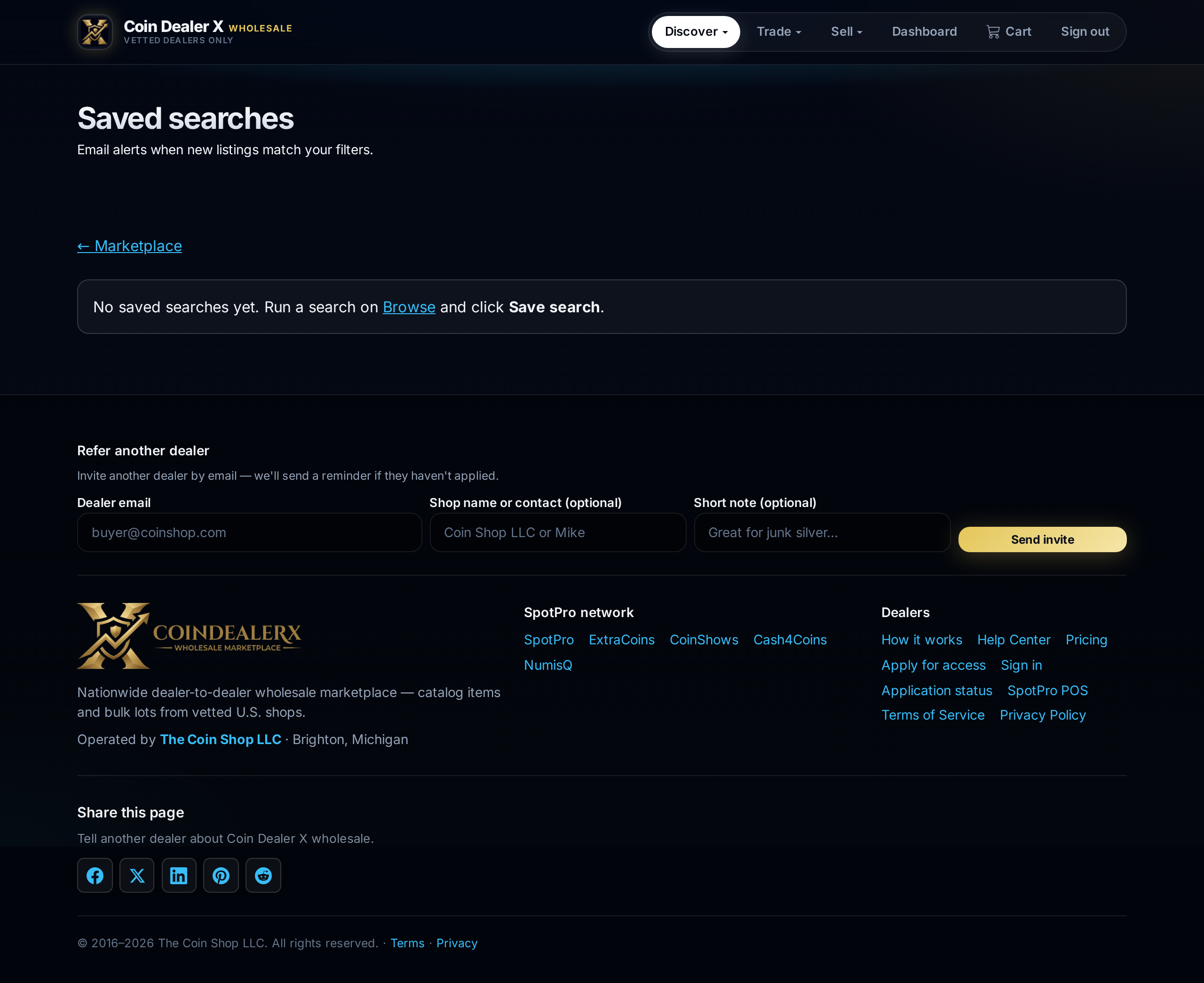
Open Discover → Saved searches or /saved-searches. Each card shows alert on/off, last alert time, Run search (reloads Browse with those filters), and delete.All saved searches in one place. 3 How email alerts work
When email alerts are on, CDX checks periodically for new listings that match your filters and sends a digest to your account email. Alerts fire only for listings you had not already been notified about. Pair saved searches with watchlist when you want to track specific items you have already seen.